For markets, fairs and private events
Live magnet making software for events
Live Impressions is live magnet making software for vendors: guests scan your QR code, add a photo and order on their own phone, and every order appears on your live order board, ready to print on sheets laid out for your press.
No app for guestsCard or cash at the boothMagnets and buttons, any press
Step by step
How a guest orders at your booth
Five steps from a scan to a finished magnet. These are real screens from Live Impressions, shown with our demo shop.
A guest scans your QR code
Every event gets its own QR code and link. Put the code on your table, your banner or a sign by the line.
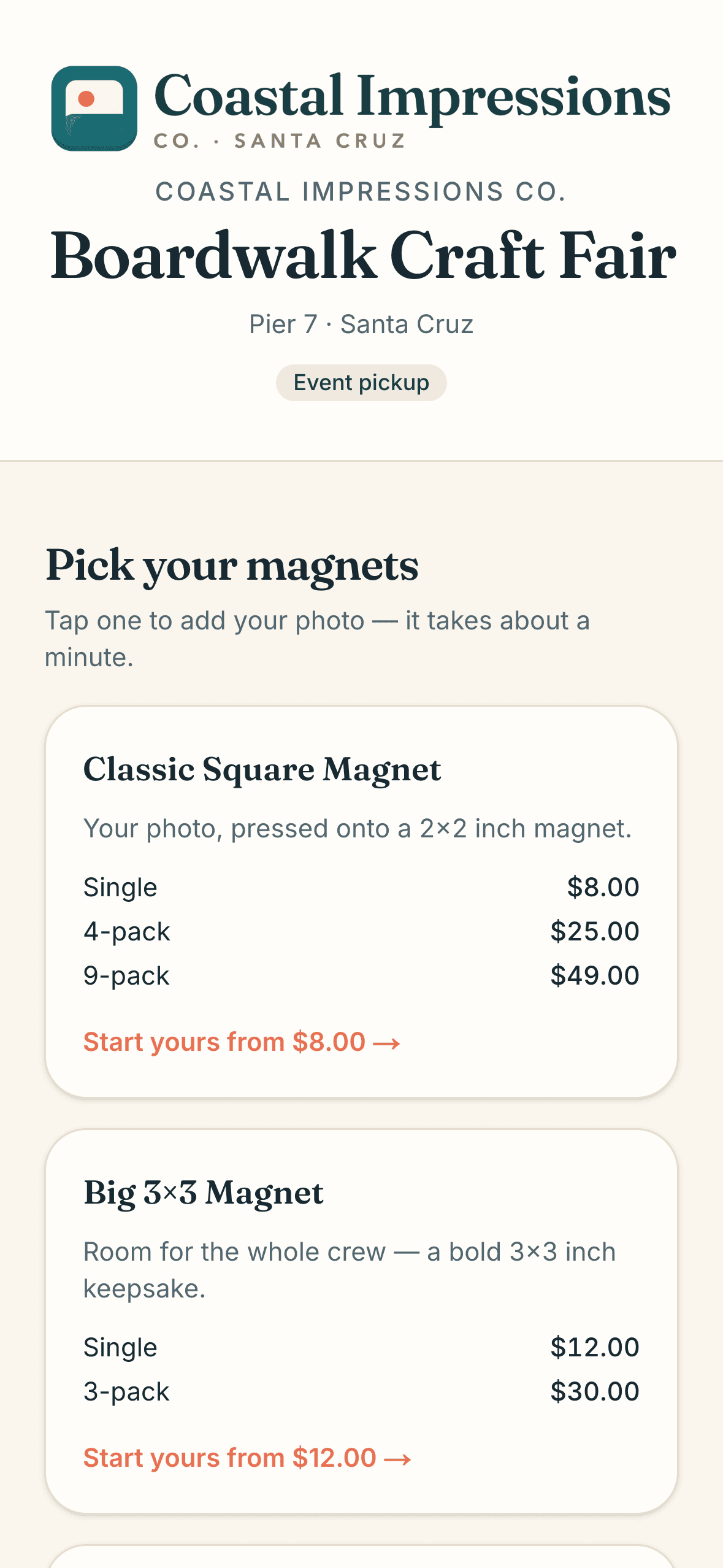
Scanning it opens your event storefront in the guest's phone browser, with your logo, your products and your prices. There's nothing to download and no account to make.
They add a photo and crop it
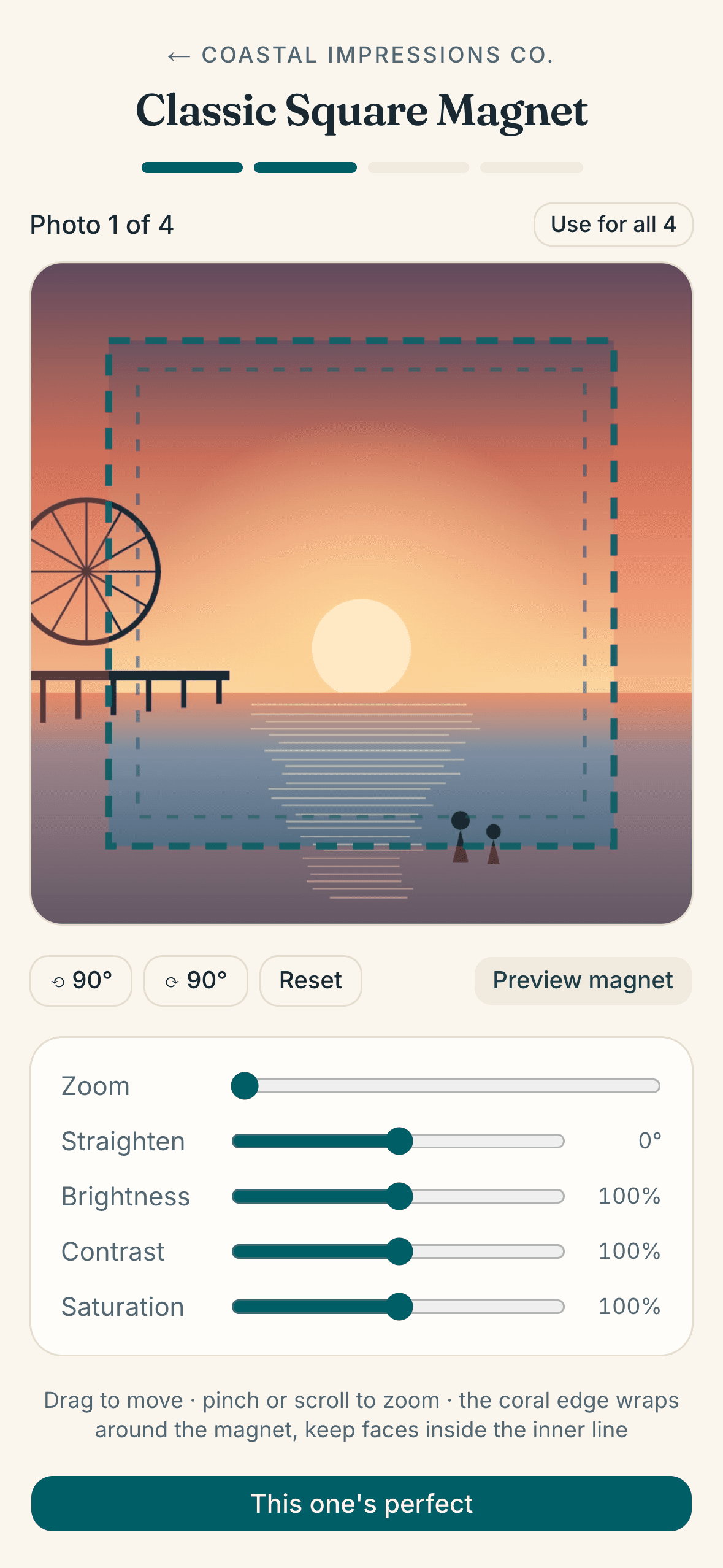
The guest picks a product and adds a photo from their camera roll. The editor shows where the magnet's edge wraps around the back and an inner line to keep faces inside. They can zoom, straighten, and adjust brightness, contrast and saturation. A 4-pack takes four photos, or one photo used for all four.
Rather do the cropping yourself? Turn on “I'll crop photos for my customers” for the event, and guests just choose a photo.
They pay by card or at your booth
You choose for each event. Card payments go straight into your own Stripe account. Booth orders are paid in person, in cash or however you take money, and you mark them collected with one tap.
Guests give their name and an email for the receipt. No password, no app. On Solo and Pro, add your Venmo handle and booth orders get a one-tap Venmo button with the amount filled in.
How guests pay, set per event
- Card or at the booth
- Card only
- At the booth only
The order lands on your live order board
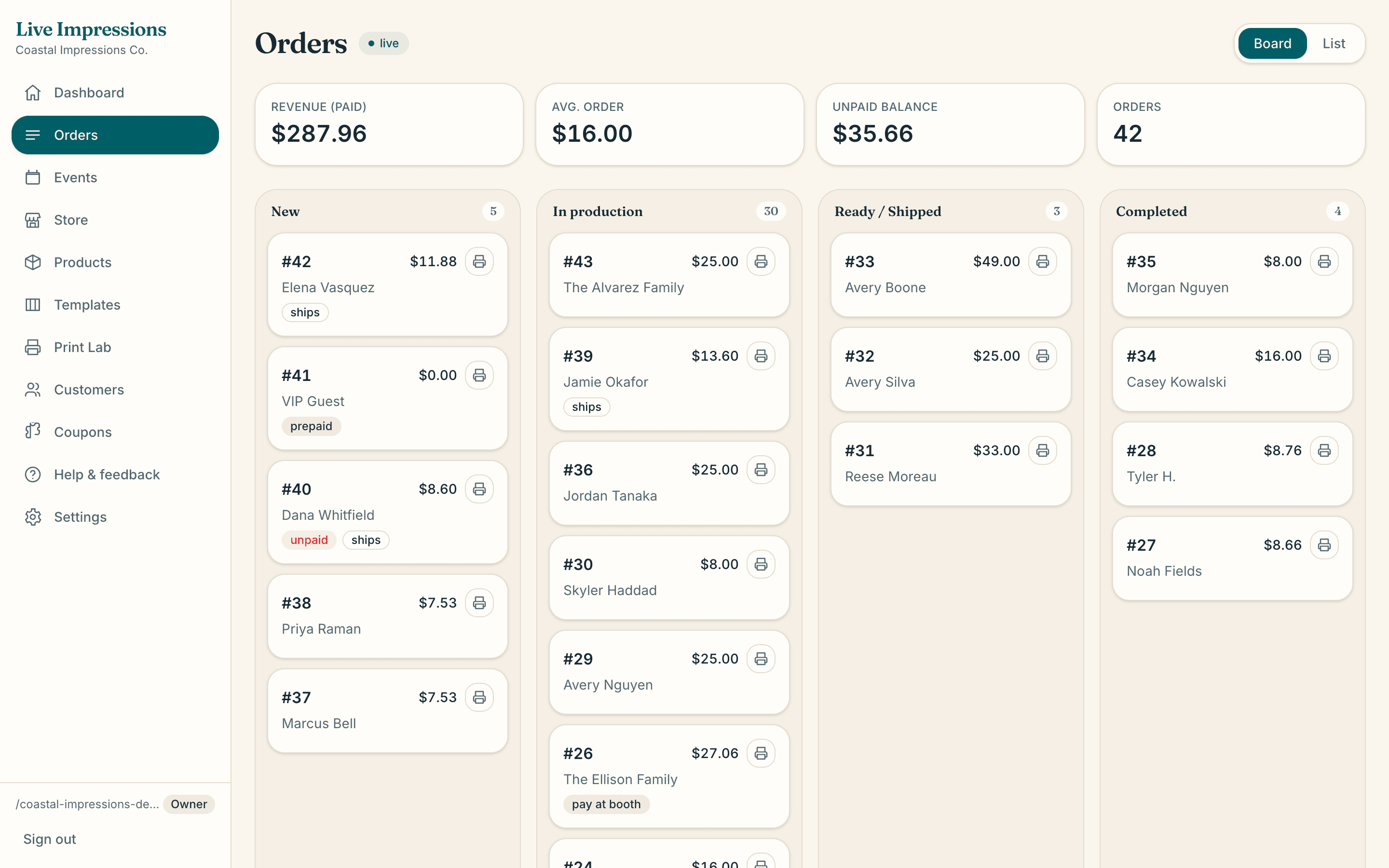
New orders show up the moment they're placed, on every phone, tablet and laptop you're signed in on. Columns run New, In production, Ready and Completed.
Tags show at a glance which orders are unpaid, prepaid, paid at the booth or shipping. An order that hasn't been paid can't be marked complete, so you can't close out an order by mistake before the money is in.
You print a batch and hand them out
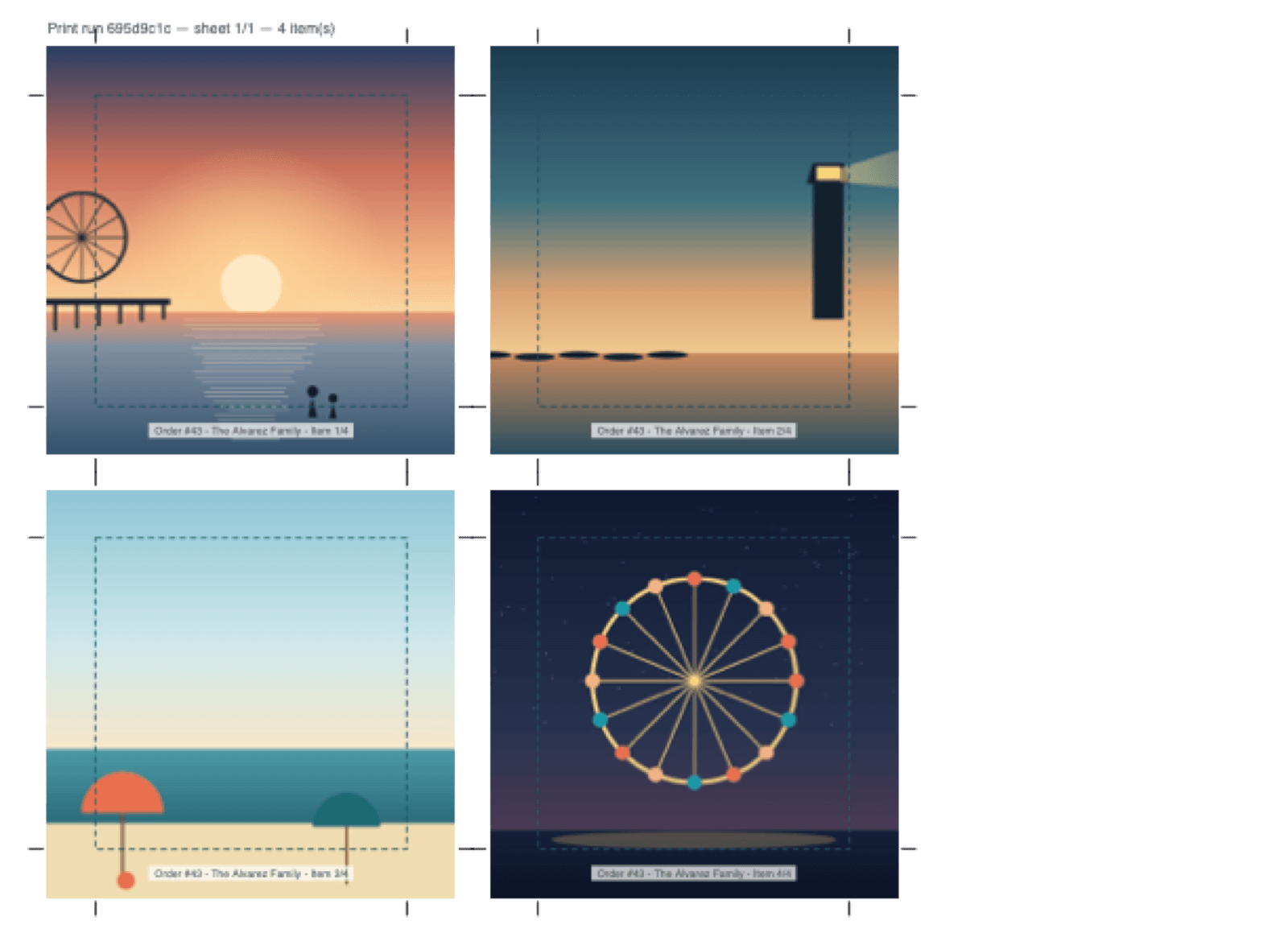
One tap on Print all new lays your new orders out on sheets for your press and moves them to In production. Every piece gets crop marks and a label with the order number and the guest's name, so sorting the stack is quick. A card order that never finished paying never reaches the press.
Move finished orders to Ready, and each guest gets an email telling them to come and pick up.
At the booth
Built for a busy booth
The parts makers lean on once the line starts to grow.
Booth kiosk
Lock a tablet to one event and let guests order on it themselves. A guest can carry on from their own phone, take a photo with the tablet's camera, or choose a file.
After a quiet spell the tablet goes back to its start screen and clears the last guest's photos and cart. Leaving kiosk mode takes your staff PIN.
Prepaid and VIP events
When a host pays you up front, guests claim their included magnets with no checkout at all. You set a limit for each guest and an optional cap for the whole event.
Opens on time
Time-gate an event and its storefront only takes orders between the start and end times. Publish it the night before and it opens itself.
The host's logo and a line of text
Print a host's logo or a sponsor's mark on every photo from an event, and add border text such as “Spring Fair 2027” around each piece.
Team photo days
Paste a coach's roster and every family gets its own order link. A tick appears beside each player as orders come in, so you know who to nudge before you print.
A practice run first
Run a practice order on your own storefront and follow it through the whole loop. Practice orders never count in your revenue or reports, and they clear in one click.
Your press, your sizes
Print sheets that fit your press
- You set each size, its bleed and your sheet in Templates, and every print file is laid out to those exact measurements.
- New accounts start with six sizes: 2 x 2, 2.5 x 2.5, 3 x 3, 2 x 3 and 2.5 x 3.5 inch magnets, plus a 2.25 inch round button.
- Different sizes from one rush share the same sheet.
- Round buttons get a punch guide on the sheet.
- Using a new printer? Print the calibration sheet and measure it before the event, then print at 100% scale, never “fit to page”.
Outdoor venues
When the signal at your booth is weak
Live Impressions runs online. Guests order over their own phone's data, so they don't need your booth's wifi, but your phone, laptop or kiosk tablet needs a connection to see new orders and print them.
- Where cell coverage is poor, bring a hotspot for your own devices.
- If guests can't get a signal either, put your kiosk tablet on the hotspot so they can order there.
- Place a practice order at the venue before the doors open, and print it, so you know the whole loop works from your spot.
- Booth payments need no card reader: take the cash and tap Mark paid.
Live event questions
Can guests pay cash at my booth?+
Yes. Set the event to take card or booth payments, or booth payments only. A booth order goes on your board straight away, and you mark it paid when you collect. Booth payments don't go through Stripe, so no platform fee applies to them.
What if a guest doesn't have a smartphone?+
Set up a tablet in kiosk mode at your booth. Guests order on it themselves, and it clears itself between guests. Leaving kiosk mode takes your staff PIN.
Can I crop the photos myself instead of the guest?+
Yes. Turn on “I'll crop photos for my customers” for an event. Guests just pick a photo, and any photo they leave as it is shows “Needs crop” on the order page, so you can fit it there.
Can I charge different prices at different events?+
Yes. Each event picks which products it sells, and you can change package prices for that event alone, so fair pricing can differ from your web store.
How many events can I run on the Free plan?+
Free includes 1 live event a month, counted by when you create the event. Solo and Pro have unlimited events.
Can I keep my event closed until it starts?+
Yes. Time-gate the event and its storefront only opens between the start and end times you set. Outside those times, guests see a friendly “not live yet” page.
Will my event page show up in Google?+
The event's own page is kept out of search engines. A Live Impressions website, if you have one, shows your published events with their name, date and venue, so give a private party a general name. Your always-open web store can show up in search if you want it to.